Midnight Racing Tokyo Controls Guide
Midnight Racing Tokyo controls for PC and mobile: steering, shifting, TCS, ABS, lights, and cameras.
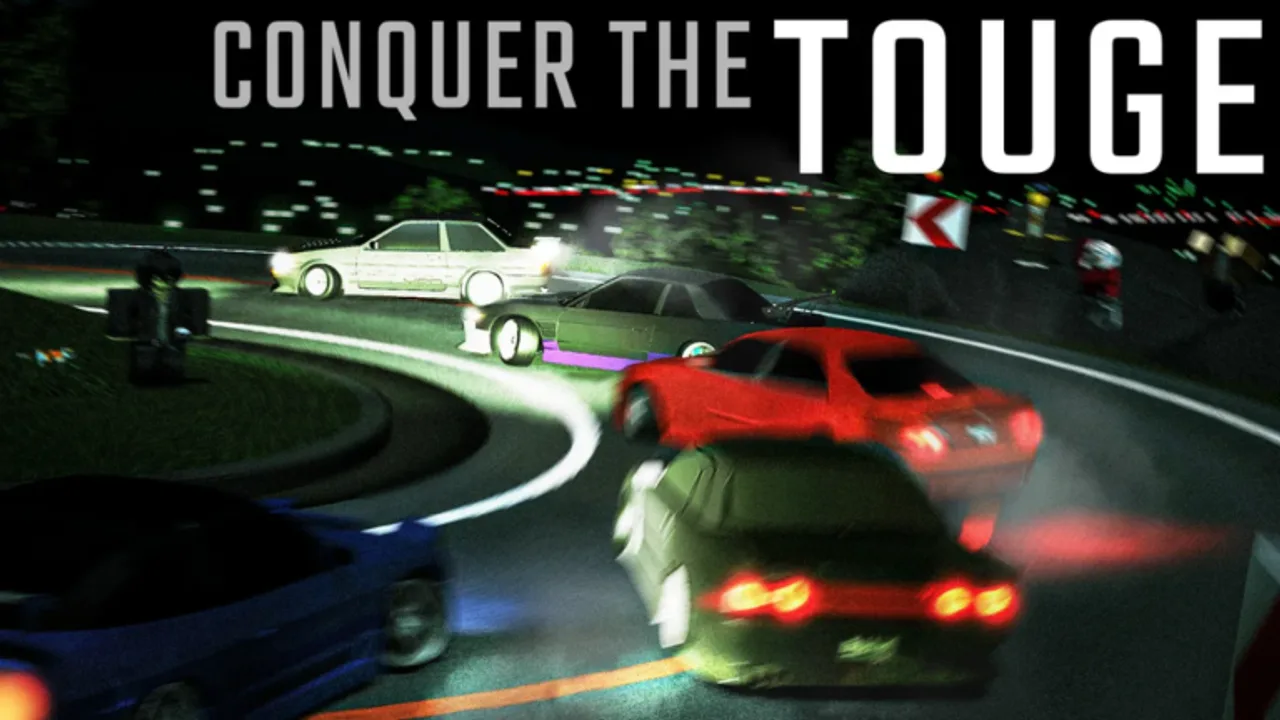
Midnight Racing Tokyo controls
Mastering inputs is the difference between a cinematic highway pass and a tunnel memorial. This guide summarizes common keyboard bindings used in Midnight Racing Tokyo and how to think about mobile layouts. Always verify inside the in-game options — Alpha can remap labels.
Core driving keys (PC)
| Input | Action |
|---|---|
| WASD / Arrows | Steer and pedals |
| J | Ignition — cars need the engine on |
| Q / E | Downshift / Upshift |
| M | Transmission mode A/T, S/T, M/T |
| Left Shift | Clutch in manual mode |
| P | Handbrake |
| T | Traction control toggle when available |
| Y | ABS toggle when available |
| L | Lights |
| Z / X / C | Left blinker / hazards / right blinker |
| V | Camera cycle (verify in options) |
| H | Horn |
If the car refuses to move, check ignition and stalls after aggressive handbrake use.
Transmission modes
Automatic helps beginners survive Getting Started night. Sequential suits touge rhythm. Full manual rewards precision on Shirosato Racing Center but punishes clutch mistakes. Practice mode changes in Tokyo City before Shuto Expressway.
Assistance systems
TCS and ABS are training wheels with dignity. Leave them on until your braking points stabilize, then experiment as taught in Tuning. Cars without TCS may show different indicator states — read the HUD carefully.
Mobile notes
Touch, drag, and tilt layouts appear automatically. UI bugs can hide controls after exiting a vehicle — rejoin if the on-screen set vanishes. Controllers work for many players, but rebinds can feel limited; test before a serious event grind from Money and XP.
Camera and awareness
Learn a camera you can trust at speed. Highway tunnels punish vanity chase cams. Pair awareness with map guides under the Maps Hub.
Practice drills
- Figure-eight parking lot clutch and ignition recovery
- Ten clean C1 braking zones
- Otsuki climb without handbrake panic (Otsuki Touge)
- Optional drift initiation from Drifting
Return to the Guides Hub afterward, and use the Tune Planner once your hands stop fighting the UI.
Binding customization philosophy
Roblox experiences sometimes inherit platform defaults and in-game overlays. Before a serious night, open options and confirm every critical binding. If you use a laptop without a full keyboard, consider sequential mode to reduce clutch complexity while learning Otsuki Touge braking points.
Assistance as training weights
Driving with TCS and ABS is not shameful. Highway tunnels on Shuto Expressway punish lockups. Disable assists one at a time after you can name braking markers aloud. The same discipline applies before you chase angle in Drifting.
Controller and mobile hybrid players
Some racers practice on PC then switch to mobile with friends. Expect different timing on throttle application. Recreate a gentle tune using the Tune Planner rather than forcing a PC sharp setup onto touch controls. If on-screen buttons disappear after exiting a car, rejoin — do not spam random keys.
Diagnostic checklist when the car feels “broken”
- Engine on?
- Correct transmission mode?
- Handbrake released?
- Assistance indicators in expected state?
- Tune ride height scraping constantly?
- Server lag after a long session?
Half of “physics bugs” are cockpit errors. The other half belong on Alpha status. Keep Getting Started bookmarked for hub refresher steps, and fund practice nights through Money and XP so you are not stressed while learning inputs.
Braking craft
Practice threshold braking on a straight before any fancy trail-brake theory. Feel the nose compress. Then try light trail brake into a medium corner on Otsuki or a Bay Area on-ramp. If the rear steps out more than you can catch, you entered too fast or stabbed the pedal—both are control issues before they are “need more parts” issues.
Throttle craft
Roll into throttle as the wheel unwinds. Sudden full throttle in low gear is how beginners invent burnouts on exit. On Shuto, think of throttle as a volume knob, not a switch. On the drag strip, deliberate launches are fine—just do not bring drag manners into hairpins unchanged.
Camera craft
Whether you orbit with mouse or stick, keep the camera calm enough to see apexes. Hyper-flicking the view creates false urgency. If motion sickness hits, lower camera speed and session length. Comfort is a control setting.
Device-specific quick fixes
Keyboard oversteer ping-pong: shorter key taps, more anticipation. Gamepad numbness: check deadzones. Mobile chaos: lower graphics, consider controller, pick stable cars, shorten sessions. None of these require scripts (Scripts).
Weekly controls workout
Two short workouts beat one long frustrated night: ten minutes of circles and braking markers midweek, then a map session on the weekend. Log whether mistakes were input timing or car setup. That log decides whether your next click is Tuning or another drill.
Frequently Asked Questions
Quick answers to the most common questions.
Why will my car not move?
Check ignition (J), stalls, and transmission mode.
Should beginners use manual?
Use automatic or sequential until map knowledge catches up.
Do mobile controls support tilt?
Mobile layouts commonly include tilt/drag/touch — confirm in your build.